
How to Turn On Subtitles or Closed Captions on TBN+
You can enable subtitles or closed captions on TBN+ to make it easier to follow along with your favorite programs. The steps may vary slightly depending on your device.
Turn On Subtitles While Watching in the Video Player in the TBN+ App
On most devices, you can turn on subtitles directly from the video player:
Start playing a video on TBN+
Look for the CC or Subtitles icon (usually in the playback controls)
Select the icon
Choose your preferred subtitle or caption option
Subtitles will begin displaying on your screen right away.
On TV Devices (Roku, Apple TV, Fire TV, Smart TVs)
Open the TBN+ app and start a video
Use your remote to open the playback controls
Navigate to the CC or Subtitles option
Turn captions On
On some devices, subtitles may also follow your system-wide caption settings.
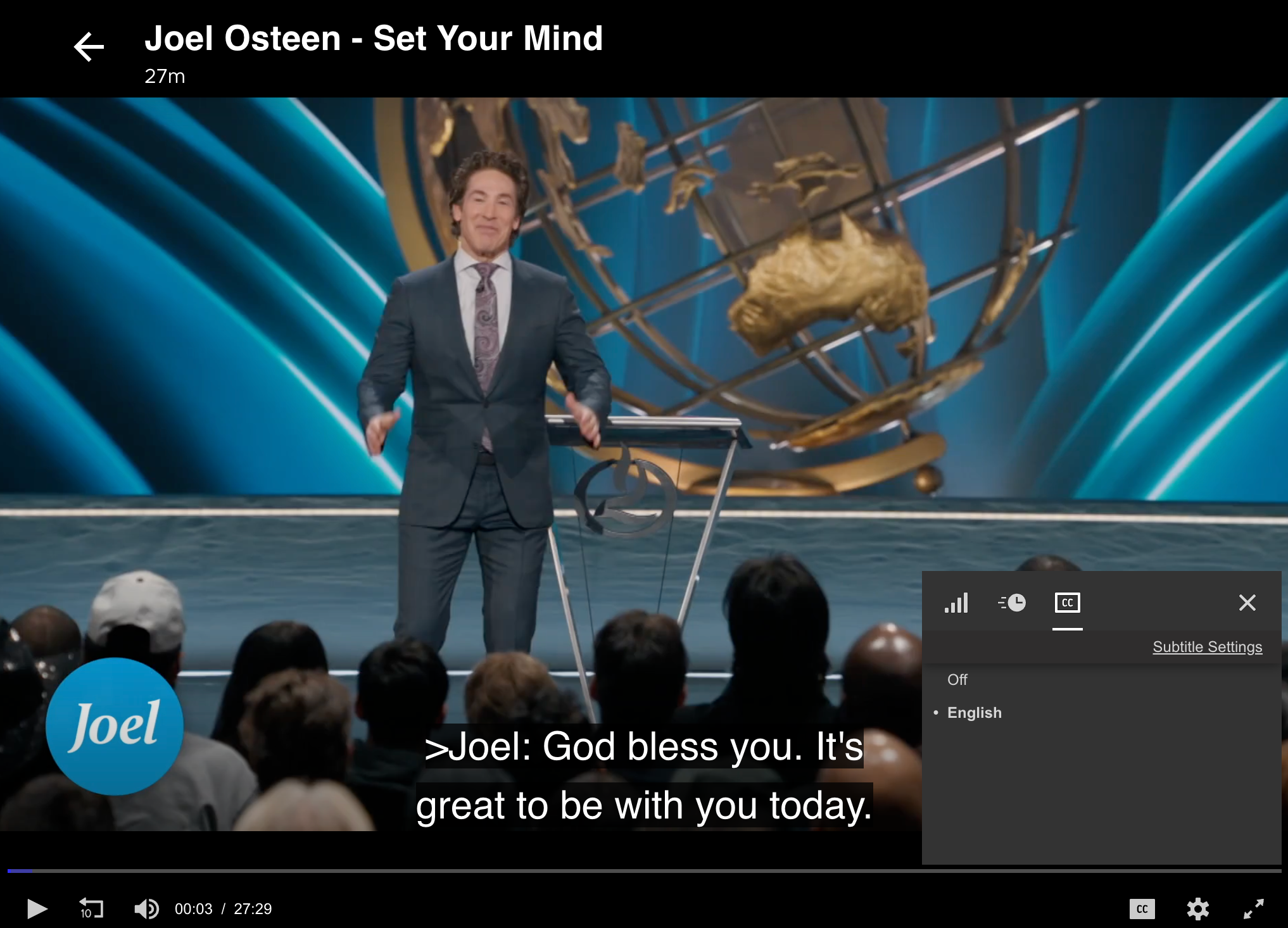
On a Web Browser
Go to https://www.tbnplus.com
Start playing a video
Click the CC or Subtitles icon in the player
Select your preferred option
Notes About Subtitles
Not all content may have subtitles or closed captions available
Available languages may vary by program
Some devices use system-level caption settings in addition to in-app controls
Having Trouble?
If you’re not seeing the option to turn subtitles on:
Make sure the video supports captions
Try turning captions off and on again
Restart the app or refresh your browser
Check your device’s accessibility or caption settings
If you’re still having trouble, submit a ticket at help.tbnplus.com and our friendly customer service team will be happy to help.