
How to Fix Activation Code Errors on TV Devices
If you’re trying to log in to TBN+ on your TV and your activation code isn’t working, the issue is usually related to timing, connectivity, or entering the code incorrectly. Follow the steps below to resolve the problem.
Common Reasons Activation Codes Don’t Work
Activation codes are designed to be quick and secure, but they can fail for a few common reasons:
The code has expired
The code was entered incorrectly
Your TV or device has a connection issue
The activation page was not completed properly
Step 1: Generate a New Activation Code
Activation codes are time-sensitive and may expire within a few minutes.
Go back to the TBN+ app on your TV
Select Login again
Wait for a new activation code to appear
Then try the activation process again using the new code.
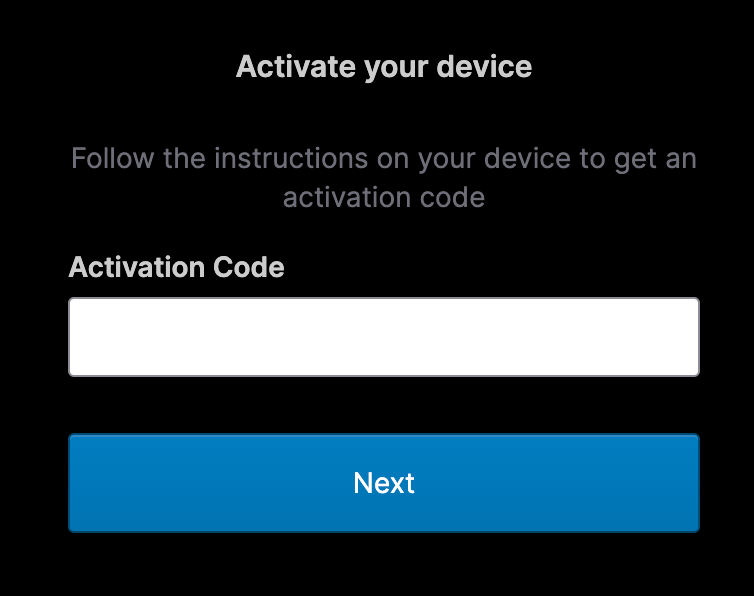
Step 2: Enter the Code Correctly
When entering your code:
Double-check for typos or incorrect characters
Enter the code exactly as shown (including capitalization if applicable)
Avoid using extra spaces
Go to: https://secure.tbn.org/activate to enter your code.
Step 3: Complete the Login Process
After entering your activation code:
Click Next
Enter your email address
Enter your password
Select Verify
Make sure you complete all steps. If you stop midway, your TV won’t sign in.
Step 4: Check Your Internet Connection
Both your TV and the device you’re using to activate must be connected to the internet.Restart your router if needed.
Step 5: Restart Your Device
If the code still isn’t working:
Restart your TV or streaming device
Close and reopen the TBN+ app
Generate a new activation code and try again
Step 6: Try a Different Device or Browser
If you’re having trouble entering the code, use a different phone, tablet, or computer or try a different web browser (Chrome, Safari, Edge, or Firefox).
Still Not Working?
If you’ve tried all of the steps above and are still having trouble, submit a ticket at help.tbnplus.com and our friendly customer service team will be happy to help.