
How to Enable Push Notifications on TBN+ (iPhone & Android)
Push notifications help you stay updated on new content, featured programs, and important updates from TBN+. You can enable or manage notifications directly from your device settings.
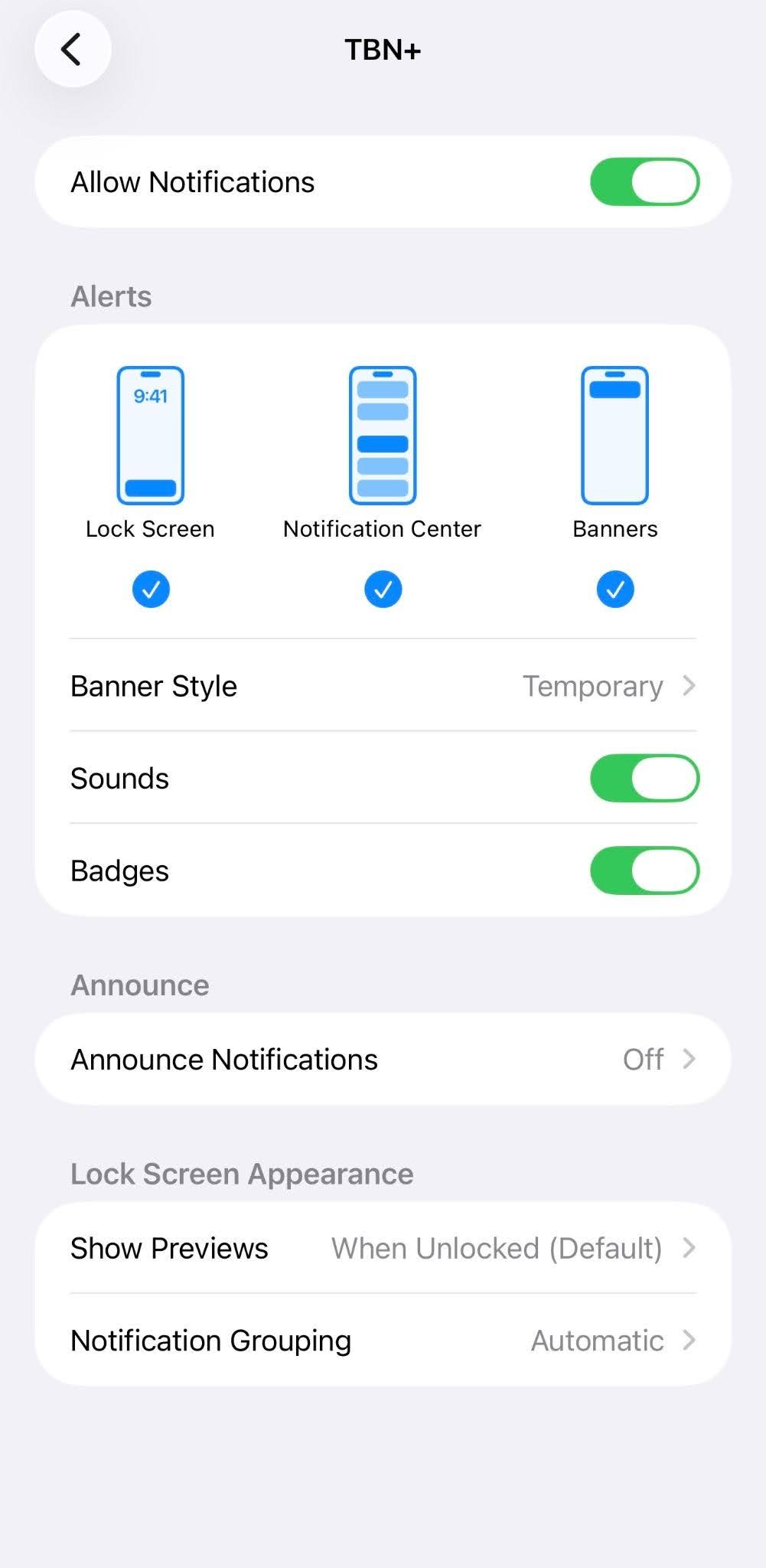
Enable Push Notifications on iPhone (iOS)
Open the Settings app on your iPhone
Scroll down and tap TBN+
Tap Notifications
Toggle Allow Notifications to On
Choose how you want to receive notifications (Lock Screen, Notification Center, Banners)
You can customize alerts, sounds, and badges based on your preferences.
Enable Push Notifications on Android
Open the Settings app on your device
Tap Apps or Apps & Notifications
Select TBN+
Tap Notifications
Toggle notifications On
Depending on your device, you may also be able to customize notification types and alert settings.
Why Am I Not Receiving Notifications?
If notifications are enabled but you’re not receiving them:
Make sure notifications are turned on in your device settings
Check that your phone is not in Do Not Disturb or Focus mode
Ensure the TBN+ app is up to date
Restart your device
If you’re still not receiving notifications, submit a ticket at help.tbnplus.com and our friendly customer service team will be happy to help.