
How to Use “My List” on TBN+
The My List feature on TBN+ allows you to save videos so you can easily find and watch them later. It’s a simple way to keep track of shows, sermons, and movies you’re interested in.
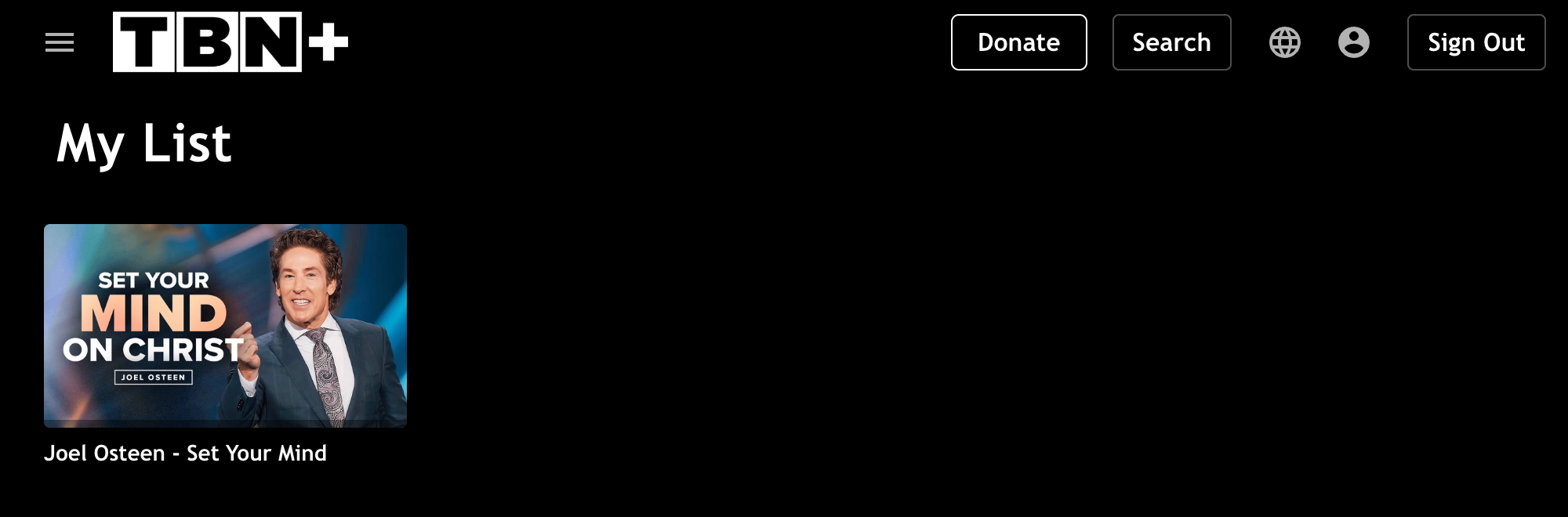
What Is My List?
My List is your personal watchlist on TBN+. When you add a video to My List, it’s saved to your account so you can access it anytime across your devices.
You can use My List to:
Save content to watch later
Keep track of your favorite programs
Quickly return to videos you don’t want to lose
How to Add Videos to My List
Browse or search for a video on TBN+
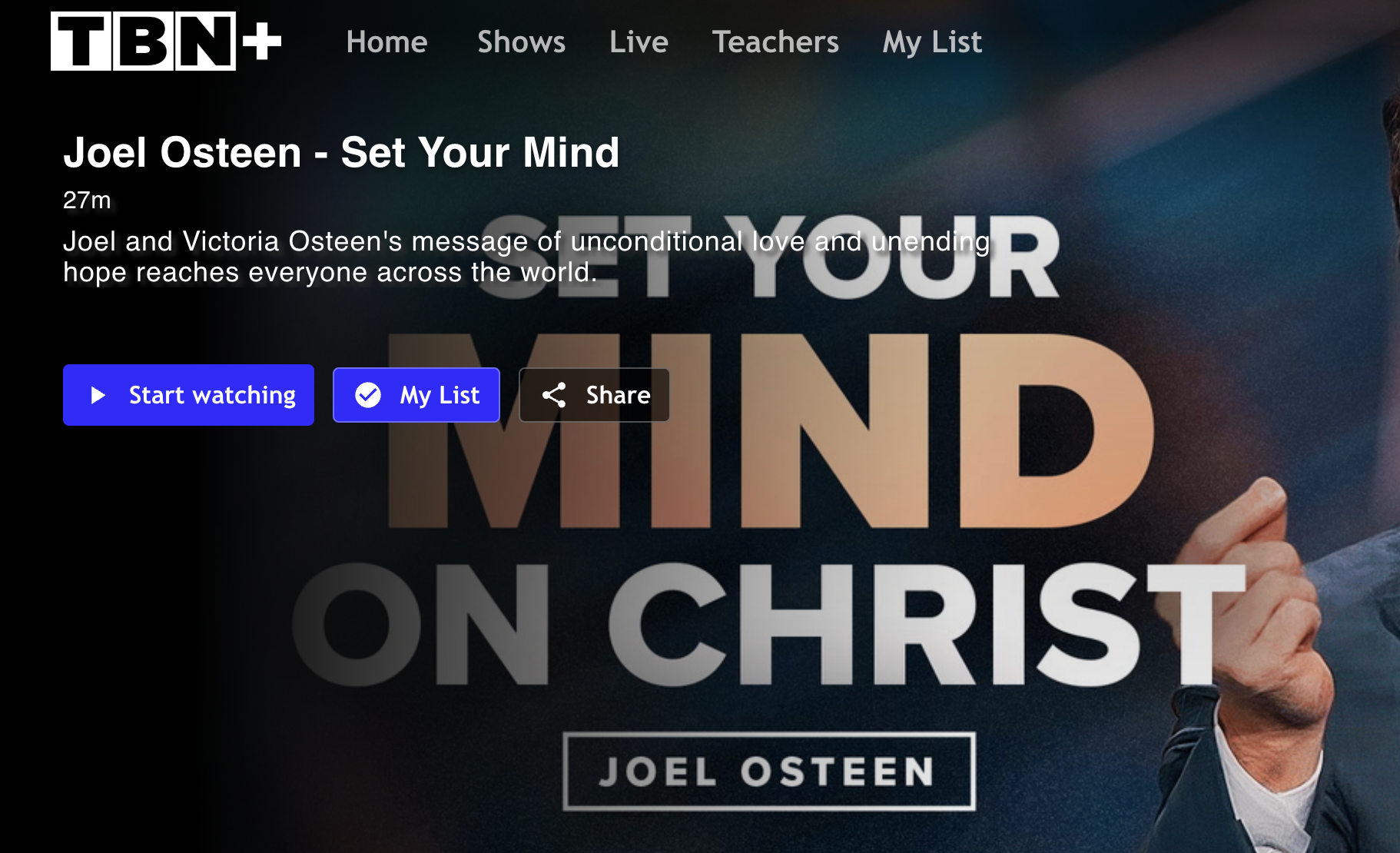
Select the video to open its details page
Click or tap Add to My List icon next to “Start watching”
The video will be saved to your My List.
How to View My List
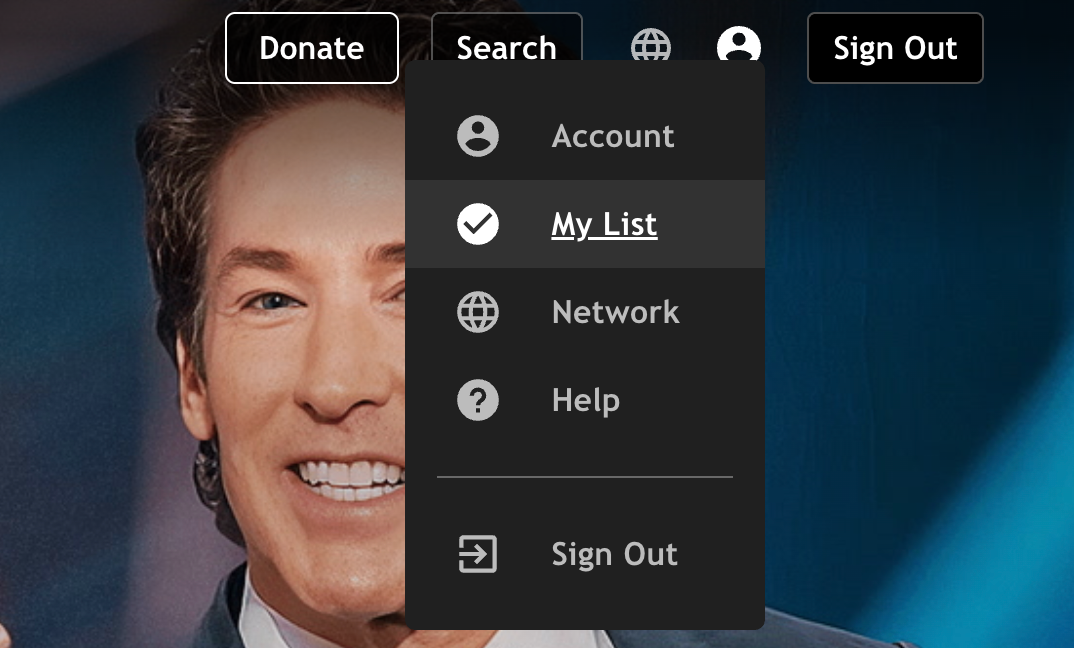
To access your saved content, go to your profile in the top right corner and select My List. You’ll see all the videos you’ve added in one place.
How to Remove Videos from My List
Go to My List
Select the video you want to remove
Click or tap the checkmark/“−” icon
The video will be removed from your list. You can also remove a video from your list by going to the video itself and clicking on the My List button again to remove it.
Access My List Across Devices
Your My List is tied to your TBN+ account, so you can access it on any supported device as long as you’re logged in.
Tips for Using My List
Add videos as you browse so you don’t forget them
Use My List to plan what you want to watch next
Remove videos after watching to keep your list organized
Need Help?
If you’re having trouble using My List, make sure you’re logged into your account. You can also submit a ticket at help.tbnplus.com and our friendly customer service team will be happy to help.