
How to Change Your International Network on TBN+
TBN+ allows you to choose your preferred language and regional network so you can watch content that’s most relevant to you. You can switch between networks at any time in just a few steps.

Change Your Network on TBN+
Open TBN+ on your device
Look for the globe (world) icon in the top right corner, next to your profile icon
Click or tap the globe icon
Select your preferred network or language from the available options
Your selection will update immediately, and you’ll see content tailored to that network.
Available Networks
Depending on availability, you may see options such as:
TBN (English USA)
TBN UK (British English)
TBN FR (French)
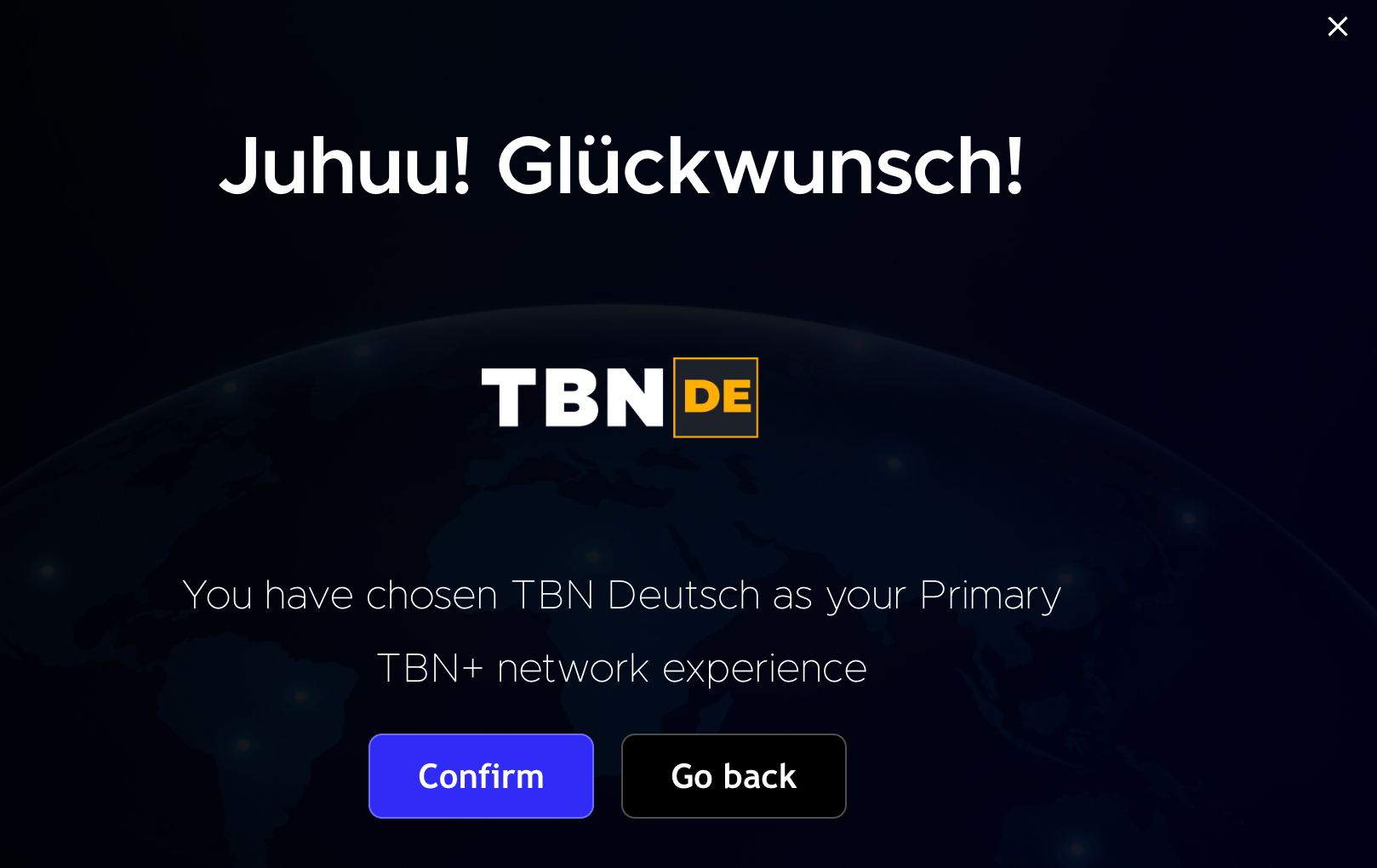
TBN DE (German)
TBN UA (Ukrainian)
Each network offers content in its respective language or region.
What Happens When You Change Networks?
When you change networks, the content library will update to match your selected region. Shows, movies, and programming may vary by network.
Can I Switch Back?
Yes, you can switch networks at any time by clicking the globe icon again and selecting a different option.
Having Trouble?
If you don’t see the network option:
Make sure you’re logged into your account
Refresh the app or browser
Update the app if needed
If you need assistance changing your network or don’t see your preferred option, submit a ticket at help.tbnplus.com and our friendly customer service team will be happy to help.