
How to Watch TBN+ on Apple TV
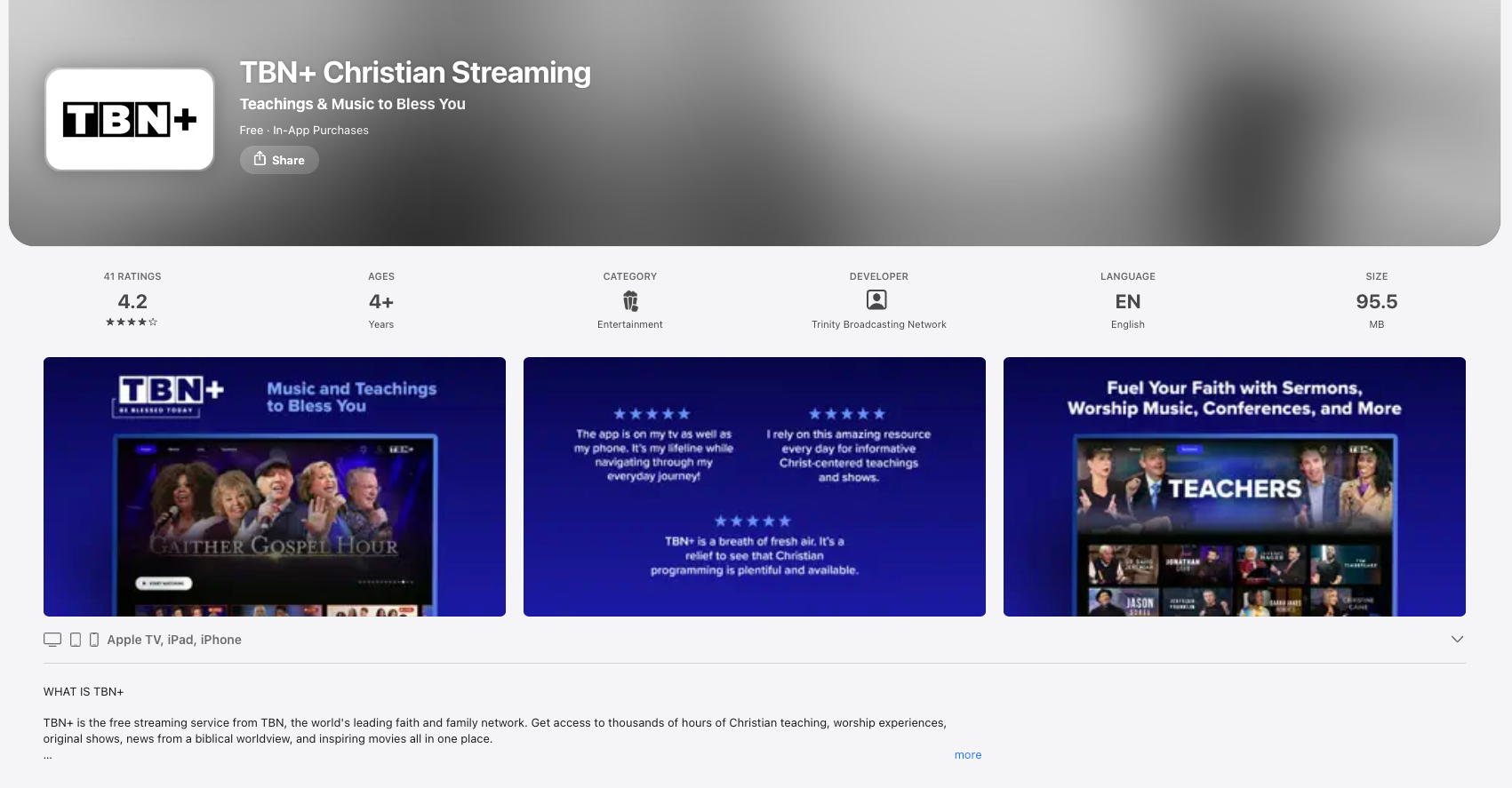
You can watch TBN+ on your Apple TV by downloading the app and logging into your account. Follow the steps below to get started.
Step 1: Download the TBN+ App on Apple TV
If you haven’t installed the app yet:
Open the App Store on your Apple TV
Select the Search option
Type TBN+
Select the TBN+ app from the results
Click Get to download
Open the app once it’s installed
Step 2: Log In to Your TBN+ Account
Open the TBN+ app on your Apple TV
Select the profile icon in the top right corner
Click Login
From here, you may see one of two login options:
Option 1: Log In with an Activation Code (Recommended)
An activation code will appear on your TV screen
On a phone, tablet, or computer, go to: https://secure.tbn.org/activate or scan the QR code shown on your TV
Enter the activation code
Log in with your email address and password
Your Apple TV will automatically sign in once completed.
Option 2: Log In with Email and Password
Using your Apple TV remote, enter your email address
Enter your password
Select Login
What Can I Watch on the TBN+ App on my Apple TV?
Once logged in, you can stream a wide selection of faith-based shows, sermons, and movies, access your watch history and saved content, or upgrade to TBN+ Premium for ad-free viewing and exclusive content
Having Trouble?
If you’re unable to watch TBN+ on Apple TV:
Make sure your Apple TV is connected to the internet
Double-check your login credentials
Try restarting your Apple TVMake sure the app is up to date
If you’re still having trouble, submit a ticket at help.tbnplus.com and our friendly customer service team will be happy to help.